
Your manager just told you that you are joining an SAP Analytics Cloud project next Monday. You opened the SAP documentation website. You read three paragraphs. You closed the tab.
Sound familiar? Every SAP beginner has been there. SAP has its own vocabulary and nobody hands you a translation guide on day one.
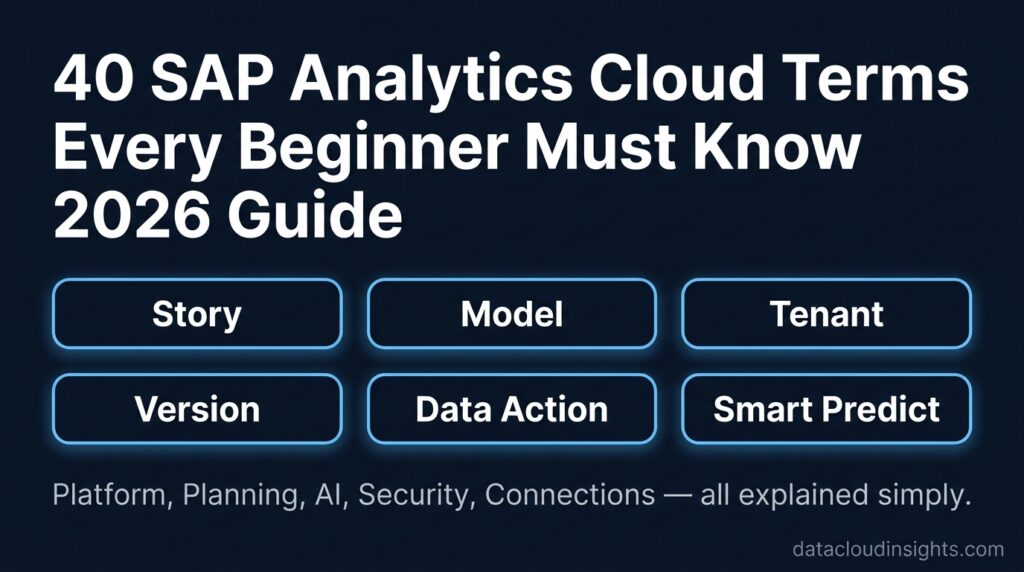
This post is that guide. Forty essential SAP Analytics Cloud terms explained in plain English with real examples from actual projects. Read it before your first kickoff meeting and you will understand every word the consultants say.
Bookmark this page. You will come back to it.
Category 1 — Platform and Architecture Terms
These are the big picture terms you hear in project kickoff meetings and architecture discussions. Master these first.
1. SAP Analytics Cloud (SAC)
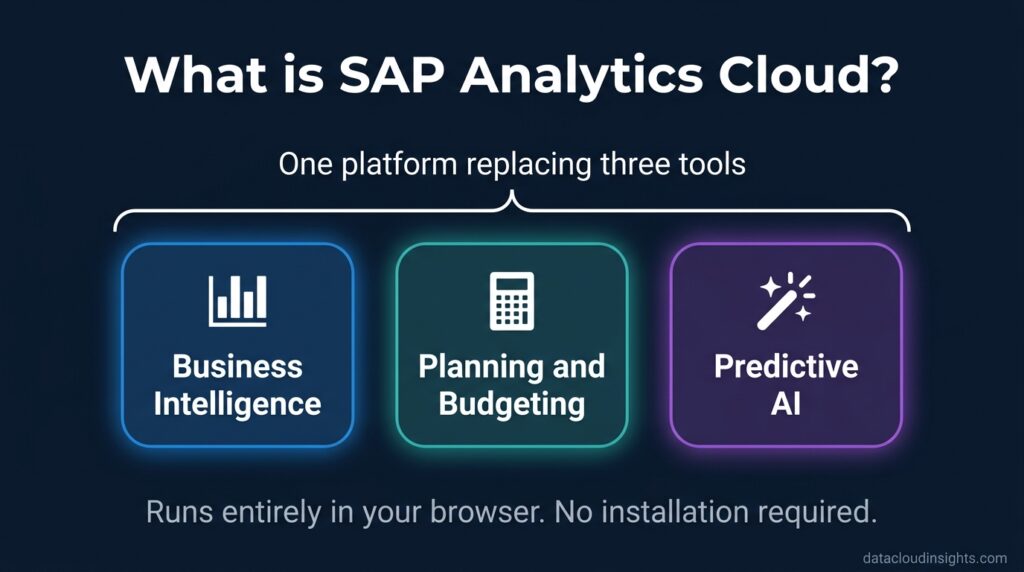
SAP Analytics Cloud is a browser-based platform that combines three things most companies previously needed three separate tools for — business intelligence reporting, financial planning and budgeting, and AI-powered predictive analytics.
You open it in Chrome. You log in. It is there. No installation. No Java plugins. No “please use Internet Explorer” embarrassment.
Before SAC existed, a typical large company ran SAP BusinessObjects for reporting, SAP BPC for planning, and some separate tool for predictive analytics. Three licences. Three training programmes. Three places where data could be inconsistent. SAC replaces all three with one platform.
The abbreviation SAC is used universally. If you say SAP Analytics Cloud in a meeting, people will know what you mean but you will sound like you are reading from a brochure. Just say SAC.
Real project example: A French retail company with 80 stores used to produce monthly performance reports in BusinessObjects that took three days to prepare. After implementing SAC with a live connection to SAP S/4HANA, the same reports update automatically every morning and take zero preparation time.
2. SAP Business Technology Platform (BTP)
BTP is SAP’s cloud infrastructure platform. Think of it as SAP’s version of Microsoft Azure or Amazon AWS. SAC runs on BTP the same way your email runs on Microsoft’s servers — you never see or touch the infrastructure but everything depends on it working correctly.
In practice you will hear BTP mentioned constantly in technical meetings. The authentication between SAC and your company’s S/4HANA system is configured in BTP. The connections between SAC and external data sources are managed in BTP. The sub-accounts and tenant provisioning happen in BTP.
As a business analyst or functional consultant you will almost never log into BTP directly. As a technical architect or SAC administrator you will spend significant time there.
The simplest mental model — BTP is the engine room of the ship. SAC is the deck where passengers walk around and look at the view. You are a passenger. You never need to visit the engine room.
Real project example: When a consultant says “we need to configure the OAuth connection in BTP” they are describing a technical task for the infrastructure team. When they say “the SAC tenant is provisioned on EU10 BTP” they are telling you where your data lives geographically — relevant for GDPR compliance discussions.
3. Tenant
A tenant is your company’s private, dedicated instance of SAP Analytics Cloud. When your company buys SAC, SAP does not give you access to a shared system. They create a completely isolated environment specifically for your organisation. That environment is your tenant.
The apartment building analogy works perfectly here. SAP owns the building. Each company that buys SAC gets their own apartment. Your neighbour in apartment 4B cannot see what you have in your apartment. You cannot see theirs. Same building. Completely separate.
Almost every SAP Analytics Cloud project runs three tenants in parallel.
The development tenant is where consultants build everything first. Think of it as the workshop — tools everywhere, half-finished work, not ready for anyone else to see.
The quality assurance tenant is where business users test everything before it goes live. It looks like the finished product but it is the version you check before committing.
The production tenant is the real system. The one that 500 employees use every morning to check their dashboards and enter their budget numbers. You treat this environment with the same respect you would give a nuclear button. You do not experiment here. You do not delete things to see what happens. You check which tenant you are in before touching anything.
Real project example: A junior consultant on a large European bank project accidentally ran a data deletion script in the production tenant instead of development. Three hours of recovery work followed. The consultant now checks the URL of every tenant before running any script. Learn from their pain.
5. Analytic Application
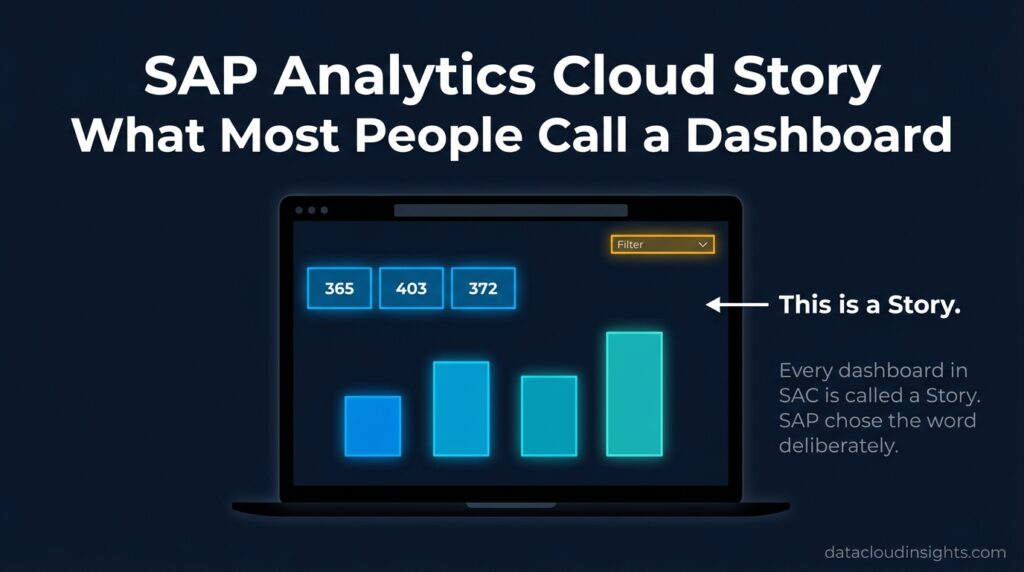
An Analytic Application is an advanced SAC content type that goes beyond what a standard Story can do. Where a Story uses drag-and-drop configuration to create standard dashboard interactions, an Analytic Application uses JavaScript-based scripting to create custom logic and interactions.
The practical difference — a Story is like a well-configured template. An Analytic Application is like a custom-built tool.
When a business requirement needs a button that triggers a specific calculation sequence, or a personalised report that changes based on who is logged in, or a workflow that guides users through a multi-step process — these requirements go into an Analytic Application.
Business consultants define what Analytic Applications need to do. Technical developers build them using the Analytics Designer environment inside SAC.
Real project example: A store manager self-service tool at RetailCo required a button that automatically generated a personalised performance summary for that specific store, highlighted the three biggest variances from target, and allowed the manager to add comments directly in the interface. A Story could not do this. An Analytic Application could.
6. Analytics Designer
Analytics Designer is the development environment inside SAC where Analytic Applications are built. It is a scripting interface where developers write JavaScript-based code to add custom behaviour, navigation logic, and business rules to their applications.
Most SAC users never open Analytics Designer. It is a technical tool for SAC developers, not for business analysts or end users.
Knowing the term exists and understanding when a requirement needs Analytics Designer versus a standard Story is valuable for anyone on an SAC project. If someone says “this requirement needs Analytics Designer work” — they are telling you it requires a developer, not a configuration task that a functional consultant can handle.
Category 2 — Data and Modelling Terms
These terms come up the moment your project moves from talking about SAC to actually building in SAC.
7. Model
A Model is the structured data layer that Stories and Analytic Applications connect to. It defines what data is available, how that data is organised, what calculations apply, and what business rules govern it.
The restaurant analogy is the clearest way to understand this. The Model is the kitchen — ingredients, recipes, preparation methods, quality standards. The Story is the menu that customers read. Customers never see the kitchen. But without a well-run kitchen, the menu is just a list of promises.
Every Story connects to at least one Model. The Model determines what dimensions and measures are available to build charts. The quality of your Model directly determines the quality of every Story built on top of it. A badly designed Model cannot be fixed by a beautifully designed Story.
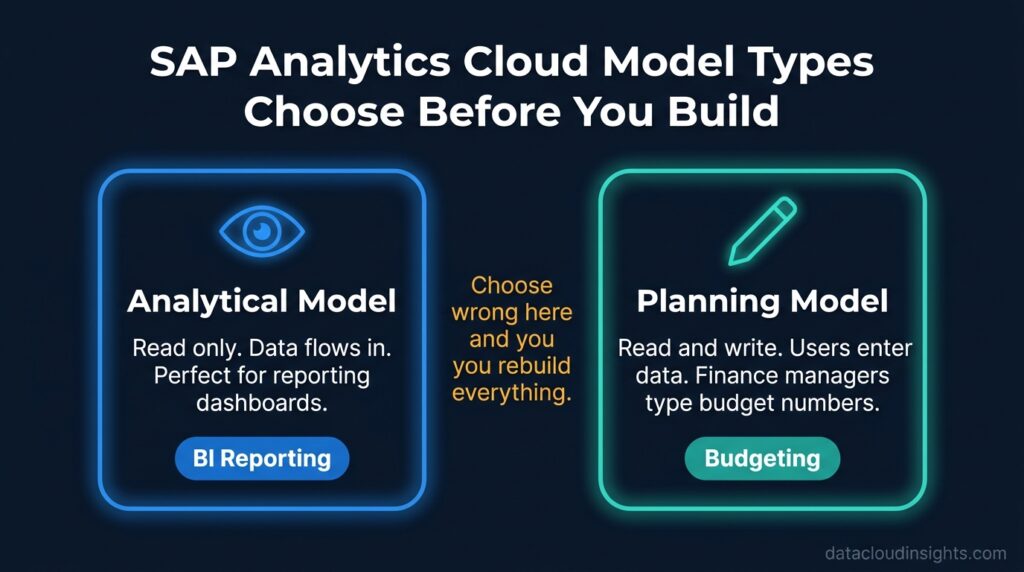
There are two fundamental types of Model in SAC and choosing the wrong one early in a project causes significant rework.
An Analytical Model is read-only. Data flows in from source systems and users can only view and analyse it. Perfect for reporting dashboards where nobody enters data.
A Planning Model is read-write. Finance managers can type budget numbers directly into the Model through planning Stories. The same Model that holds planning data also serves reporting — budget versus actual comparisons pull from the same Planning Model that finance managers entered their numbers into.
Real project example: A common early project mistake is designing what finance needs as an Analytical Model because the modeller thinks about reporting first. Then halfway through the project someone mentions that finance managers also need to enter their budget numbers directly in SAC. The model has to be rebuilt as a Planning Model. Six weeks of rework. Always clarify upfront whether anyone needs to enter data before choosing the model type.
8. Dimension
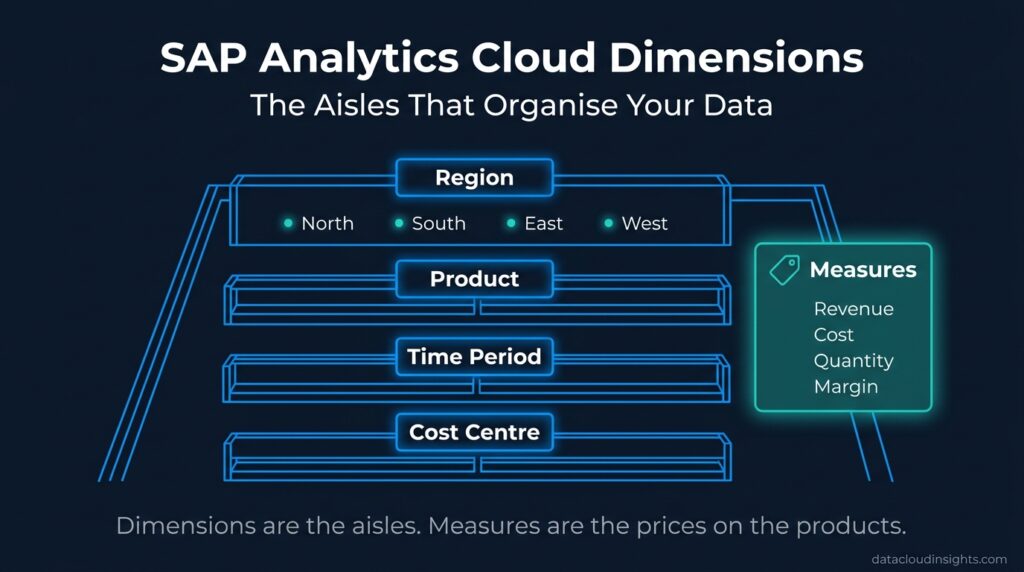
A Dimension is a descriptive attribute used to categorise, filter, and slice your data. Dimensions answer the question “by what?” — revenue by region, costs by month, headcount by department.
Common dimensions in SAC projects include Region, Product, Time Period, Cost Centre, Customer, Country, and Employee. You put dimensions on chart axes. You use them as filters. You drill through them in hierarchies.
The supermarket analogy makes this stick immediately. If your data is the products and the measures are the prices, then dimensions are the aisles. Aisle 1 is dairy. Aisle 3 is bread. Aisle 7 is beverages. The aisles do not contain the products — they organise them so you can find what you need. Dimensions do the same thing for your data.
SAC has several special dimension types beyond the standard generic dimension:
A Time Dimension is mandatory in every SAC Model. It is configured rather than populated — you define the granularity (monthly, quarterly, yearly) and the fiscal year variant, and SAC generates the time members automatically. No dim_date table to maintain.
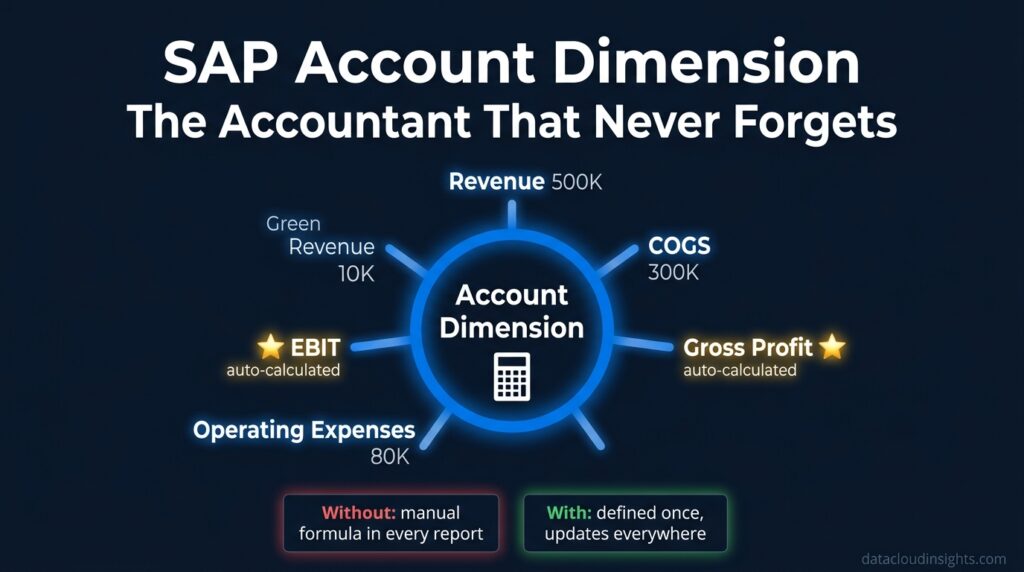
An Account Dimension represents financial chart of accounts — Revenue, COGS, Gross Profit, Operating Expenses — with formula accounts that calculate automatically. Gross Profit automatically equals Revenue minus COGS without any formula you have to write.
An Organisation Dimension represents cost centres, profit centres, company codes, and business units with hierarchies that reflect your SAP organisational structure.
A Version Dimension exists only in Planning Models and represents different planning scenarios — Actual, Budget, Forecast, Prior Year. More on this in the Planning section.
Real project example: A planning model for a manufacturing company had 11 dimensions including Time, Version, Cost Centre, Material, Plant, Customer, Sales Organisation, Division, Distribution Channel, and two custom dimensions. Building and testing all dimension combinations before any Story was built took three weeks. Getting the dimension design right is the most important investment in any SAC project.
9. Measure
A Measure is a numerical value that you analyse and aggregate. Measures answer the question “how much?” — how much revenue, how many units, how high a margin percentage.
Common measures include Revenue, Cost, Quantity, Headcount, Gross Margin, Customer Satisfaction Score, and Inventory Level.
The dimension versus measure distinction is the single most important concept in SAC data modelling. Getting it wrong at model design stage causes problems everywhere downstream.
The simplest test — is this something you want to add up, average, or count? If yes, it is a Measure. Is this a label you want to filter or group by? If yes, it is a Dimension.
January is not a Measure. It is a member of the Time Dimension. Revenue is not a Dimension. It is a Measure. Gross Margin Percentage is not a Dimension. It is a Calculated Measure. Cost Centre CC001 is not a Measure. It is a member of the Organisation Dimension.
SAC defines measures inside the Model with their aggregation behaviour, currency, sign convention, and formatting all specified once. Every Story that uses the Model inherits all those definitions automatically — eliminating the situation where two dashboards show different revenue figures because two developers wrote slightly different aggregation logic.
10. Hierarchy
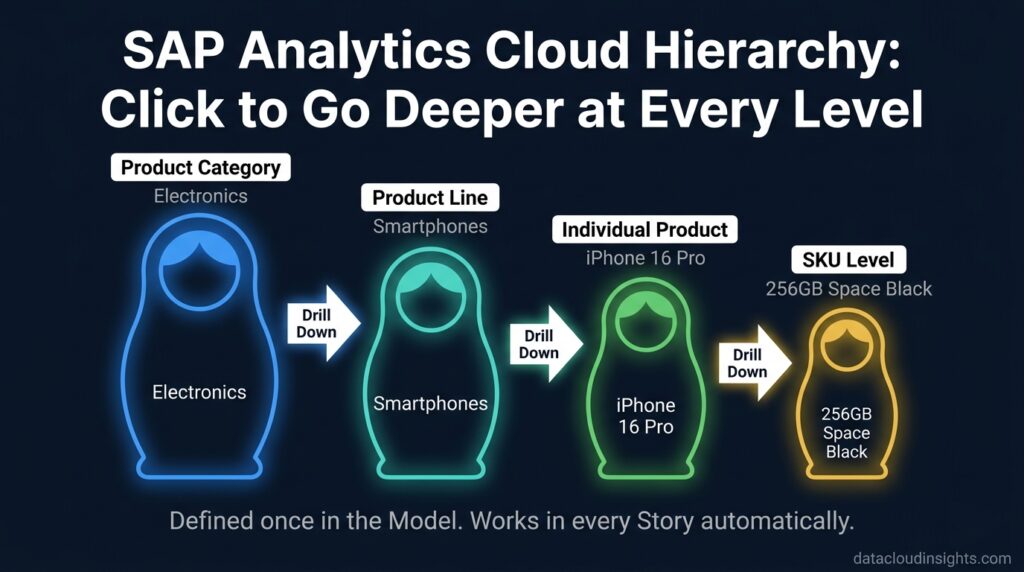
A Hierarchy is a parent-child structure within a dimension that enables drill-down navigation. Hierarchies allow users to start at a summary level and navigate progressively into more detail.
The Russian nesting doll analogy makes this memorable. The largest doll is your top-level category — Electronics. Open it and find Product Lines inside — Smartphones, Laptops, Accessories. Open Smartphones and find individual products — iPhone 16 Pro, Samsung Galaxy S26. Each level is nested inside the previous one.
In a Story, when a user sees revenue by Product Category they can click on Electronics to drill down to Product Lines within Electronics. Click on Smartphones to see individual phone models. The hierarchy defined in the Model powers all of this navigation automatically — no additional configuration required in each Story.
Real project example: A retail client had a product hierarchy with four levels — Category, Sub-Category, Brand, and SKU. Defining and testing this hierarchy correctly in the model took two days. Once correct, every Story automatically supported four-level drill-down navigation without any additional work per dashboard.
11. Calculated Measure
A Calculated Measure is a measure that does not exist in your source data but is calculated from other measures using a formula defined in the Model.
Gross Margin Percentage is the classic example. Your source system stores Revenue and Cost of Goods Sold. It does not store Gross Margin Percentage as a column. You define the formula once in the SAC Model as Gross Profit divided by Revenue multiplied by 100. From that moment every Story connected to this Model can display Gross Margin Percentage — calculated correctly, consistently, automatically.
The power of defining calculations at Model level rather than in individual reports is consistency. Without centralised metric definitions different teams write different formulas. One report excludes returns from revenue. Another includes intercompany transactions. A third has a formula error from 2019 that nobody noticed. Three dashboards showing three different gross margin numbers create distrust in the entire data platform.
Define the calculation once in the Model. Trust it everywhere.
12. Restricted Measure
A Restricted Measure is a measure permanently filtered to a specific subset of data — defined at Model level and available to every Story connected to that Model.
North Region Revenue is a classic restricted measure. It is the Revenue measure permanently filtered to Region equals North. Any Story builder can drop North Region Revenue onto a chart without applying any filter manually — the restriction is already baked in.
Think of it as a pre-made sandwich in a coffee shop. Someone already assembled it with specific ingredients. You pick it up and use it. You do not assemble it from scratch every time — which means you cannot accidentally forget an ingredient.
13. Account Dimension
The Account Dimension is SAC’s special dimension type for financial chart of accounts structures. It is the one concept with no direct equivalent in standard data engineering tools like Power BI or Databricks — and the one that confuses data engineers most on their first SAC project.
An Account Dimension holds financial line items — Revenue, Cost of Goods Sold, Gross Profit, Operating Expenses, EBIT. What makes it special is formula accounts. Gross Profit can be defined as a formula account that automatically equals Revenue minus COGS. EBIT can be defined as Gross Profit minus Operating Expenses.
You never enter Gross Profit manually. You never maintain a formula in a cell that someone might accidentally delete. The Account Dimension calculates everything automatically for every combination of every other dimension in the Model — and updates instantly whenever Revenue or Cost changes.
The Account Dimension also understands accounting sign conventions. Revenue is positive. Expenses are negative. It handles debit and credit logic automatically without custom conditions.
Real project example: A manufacturing client had a P&L structure with 47 line items. 12 of those were formula accounts calculated from the other 35. Defining all 47 in the Account Dimension took one day. After that, every Story that included P&L data had all 47 lines calculated correctly with zero additional effort per report.
Category 3 — Reporting and Visualisation Terms
These are the terms that come up daily during dashboard design and Story development.
14. Page
A Story can contain multiple Pages — like tabs in a browser or slides in a PowerPoint presentation. Each Page is a separate canvas with its own charts, tables, and filters.
Good dashboard design separates content by audience and purpose. Page 1 is the executive overview — three KPI tiles and one summary chart for people who have 30 seconds. Page 2 is the regional breakdown for sales directors. Page 3 is the product analysis for the merchandising team. Page 4 is the budget detail for the finance controller.
Same Story. Four Pages. Four audiences. Each Page focused on answering one specific business question clearly rather than cramming everything onto one chaotic canvas.
A practical performance consideration — each widget on a Page fires its own query when the Page loads. A Page with 15 widgets fires 15 simultaneous queries. This is why experienced SAC consultants limit Pages to 6 to 8 widgets maximum and add more Pages instead of more widgets on one Page.
15. Widget
Everything you add to a Story Page canvas is a Widget — charts, tables, KPI tiles, text boxes, images, filter dropdowns, shapes, and buttons. Every single element is a Widget.
When building a Story, you click Insert in the top menu and everything in that menu is a Widget. Select Chart and a chart Widget appears on the canvas. Select KPI Tile and a KPI tile Widget appears.
The performance implication is important. Each Widget fires its own independent query to the data Model every time the Page loads or a filter changes. Six Widgets means six queries. Twelve Widgets means twelve queries all firing simultaneously. This is why Pages with many Widgets feel slow — too many simultaneous conversations happening between the Story and the data layer.
16. KPI Tile
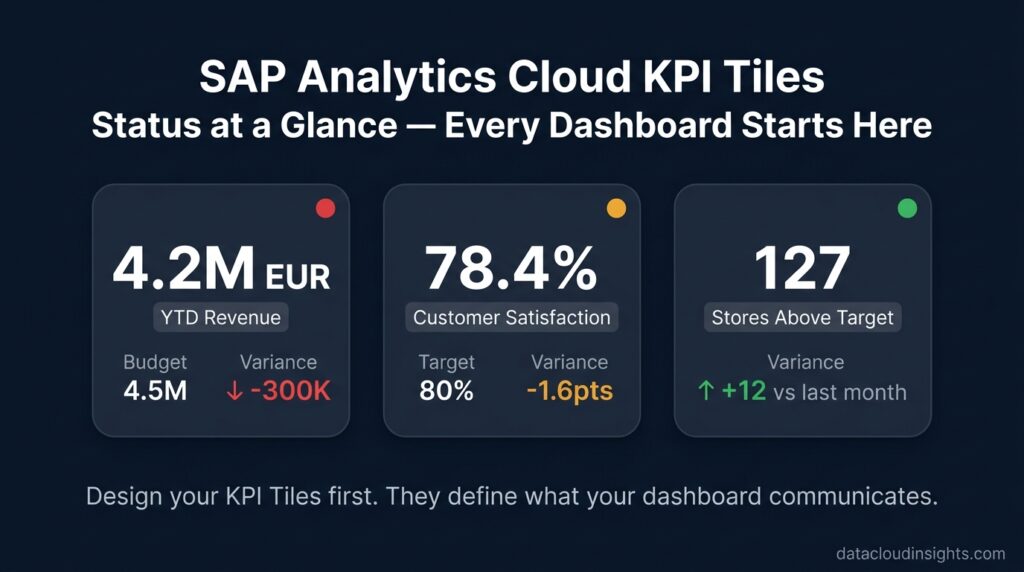
A KPI Tile is a compact Widget that displays one single Key Performance Indicator — a primary value, a comparison value, and the variance between them — in a format that communicates status at a glance.
Year-to-date Revenue of 4.2 million euros. Budget of 4.5 million euros. Variance of minus 300,000 euros at minus 6.7 percent. Red indicator. The CFO understands the revenue situation in under two seconds without reading a single chart.
KPI Tiles belong at the top of every executive dashboard. They are the headline. The charts below are the article. Design your KPI Tiles first when building any dashboard — they define what the dashboard is fundamentally communicating.
Green means performance is at or above target. Red means investigation is required. That traffic light communication is what makes KPI Tiles the most-looked-at element on any professional dashboard.
17. Input Control
An Input Control is an interactive filter Widget that lets Story users filter the data themselves without asking anyone for help. It appears as a dropdown, checkbox list, date picker, or search field on the canvas.
When a regional director selects North from a Region Input Control, every chart and table connected to that control instantly updates to show only North region data. No page reload. No waiting. Instant.
Input Controls have three scope levels and understanding scope is critical. A Story-level Input Control filters every Page in the entire Story — selecting Current Year changes data everywhere on every page simultaneously. A Page-level Input Control affects only the Page it lives on. A Chart-level filter is permanent and invisible to the user — it restricts one chart without affecting anything else.
Getting scope wrong is one of the most common beginner mistakes. A user selects a region filter and only one of six charts updates — because the other five have page-level or story-level filters set incorrectly. Always specify the intended scope before creating any filter.
18. Linked Analysis
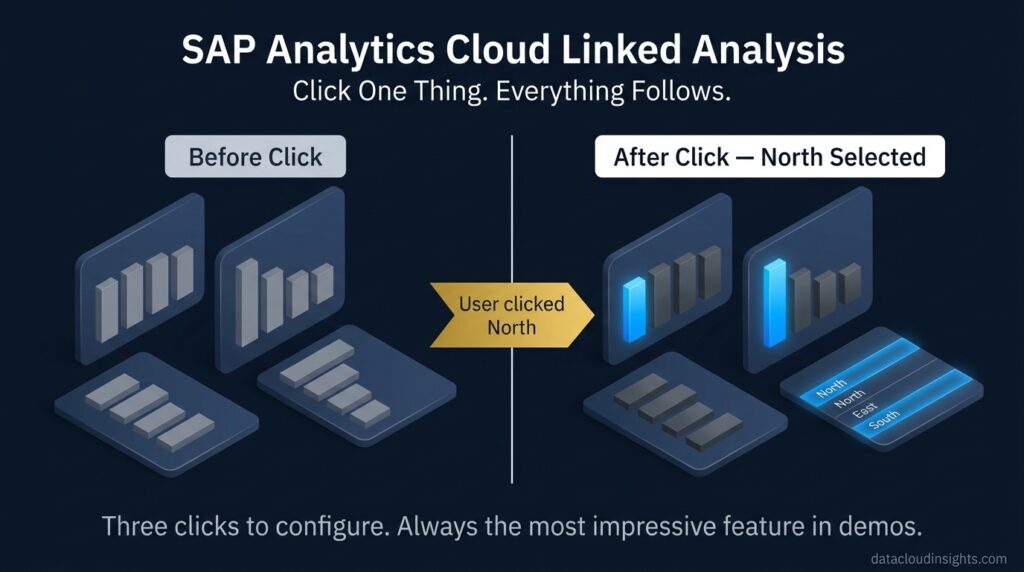
Linked Analysis connects charts so that clicking a data point in one chart automatically filters all linked charts to show only related data.
Without Linked Analysis, clicking on the North bar in a revenue chart does nothing. The bar shows you a number. That is all.
With Linked Analysis, clicking on the North bar instantly filters every linked chart and table on the Page to show only North region data. The product breakdown chart updates. The store performance table updates. The trend line updates. You clicked once and the entire Page reorganised around your selection.
Setting up Linked Analysis requires right-clicking on a chart, selecting Linked Analysis, and choosing which other charts should respond to clicks on this chart. Three clicks. Thirty seconds of configuration. Consistently the feature that impresses business stakeholders most in review sessions.
Real project example: A retail operations director saw Linked Analysis demonstrated for the first time during a review meeting. She clicked on Germany in the regional map and watched the store performance table filter to show only German stores instantly. She turned to the project manager and said “can we have this for every report?” The project scope expanded that afternoon.
19. Drill Down
Drill Down is a navigation action that moves from a summarised view to a more detailed view by navigating deeper into a hierarchy within the same chart.
You see revenue by Product Category. You right-click on Electronics and select Drill Down. The chart changes to show revenue by Product Line within Electronics — Smartphones, Laptops, Accessories. You right-click on Smartphones and drill down again to individual phone models.
The chart is still there. You just went deeper inside it without opening anything new.
Drill Down is powered by the hierarchy defined in the Model. No additional configuration is needed in each Story. Define the hierarchy correctly once and every Story automatically supports drill-down to every level.
Drill Down is different from Drill Through. Drill Down goes deeper within the same chart. Drill Through navigates to a completely different Page with more detail about what you clicked. Drill Down is like zooming into the same map. Drill Through is like clicking a link that opens a different map.
20. Responsive Canvas vs Classic Canvas
When creating a new Story in SAC you choose between two canvas types that behave completely differently.
Responsive Canvas automatically adapts your Story layout to different screen sizes. On a desktop the KPI Tiles sit side by side. On a tablet they reflow into two rows. On a mobile phone they stack vertically. The same Story works on every device without additional design work.
Classic Canvas has a fixed size and layout. What you design on screen is exactly what users see — on every device at every screen size. If you designed for a 1920 by 1080 desktop and a user opens the Story on a phone, they see a miniaturised version that requires pinching and zooming.
In 2026 Responsive Canvas is the standard for almost all new Stories. Board members check dashboards on their phones before meetings. Regional managers view reports on tablets during store visits. Mobile access is not an afterthought.
Classic Canvas remains relevant for pixel-perfect regulatory reports and print-optimised financial statements where precise layout control matters more than device adaptability.
Category 4 — Planning Terms
These terms come up the moment finance teams get involved in your SAP Analytics Cloud project.
21. Planning Model
A Planning Model is a specific type of SAC Model that allows users to write data back into it — entering budget numbers, forecast figures, and target values directly through a Story interface.
The concept that surprises most people encountering SAC Planning for the first time — a dashboard where users type numbers into cells and those numbers immediately appear in charts and reports across the entire organisation.
This feels strange if you come from a background where dashboards are always read-only. Give it a week. Once you understand it, you wonder how finance teams ever managed without it.
An Analytical Model is a printed newspaper — you can read it but not change it. A Planning Model is a shared Google Doc — authorised users can both read and write, changes appear for everyone immediately.
22. Version
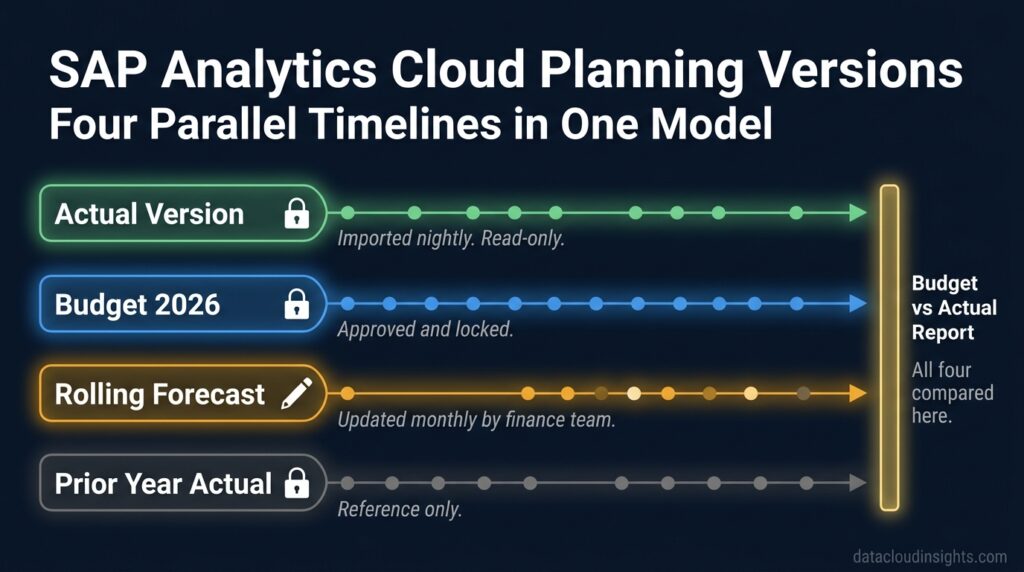
Every number in a Planning Model belongs to a Version. A Version is a named container for a specific set of planning data — actual results, approved budget, rolling forecast, or prior year comparison.
RetailCo’s planning model has four Versions. Actual holds real financial data imported nightly from SAP S/4HANA — sacred and untouchable. Budget 2026 holds the annual budget approved by the board in February — locked after approval. Rolling Forecast holds the latest view of how the year will end — updated monthly by finance managers. Prior Year Actual holds last year’s numbers for comparison — read-only reference data.
The budget versus actual report that the CFO reviews every Monday shows all four Versions side by side in one table — same dimensions, same measures, different data. Without Versions this comparison would require joining four separate datasets. With Versions it is a configuration choice.
23. Data Action
A Data Action is an automated process inside a Planning Model that performs a specific task — copying data between Versions, distributing values across dimensions, running calculations, or applying allocation logic — triggered by a button click in a Story.
Before Data Actions, finance teams did these tasks manually in Excel. Copy last month’s actuals into the forecast spreadsheet. Distribute the annual budget across twelve months. Allocate shared costs across cost centres. Each task took hours of manual error-prone work every month.
A Data Action does the same thing in seconds. The finance manager clicks one button. The Data Action runs. Everything updates automatically.
Think of a Data Action as a dishwasher. Someone configured it correctly and chose the programme. The user just presses the button. Complex work happens invisibly. Everything comes out clean.
Real project example: RetailCo’s month-end close previously required two finance team members spending most of a day copying actuals into the rolling forecast, distributing costs across stores, and emailing updated files to the team. A single Data Action replaced all of that. It now runs in 30 seconds. Every month. Without fail.
24. Spreading
Spreading is SAC Planning’s feature for automatically distributing a total value across time periods or dimension members using a defined method.
A finance manager enters an annual marketing budget of 1,200,000 euros as a single number. She right-clicks the annual total cell and selects Spread Equally. SAC instantly populates 100,000 euros into each of the twelve monthly cells.
She could instead choose Spread by Prior Year Values — SAC looks at last year’s actual monthly distribution and applies the same seasonal pattern to this year’s budget automatically. Or she could enter custom percentages for each month to reflect a specific campaign calendar.
One number entered. Twelve cells populated. Automatically. Correctly.
The feature that converts the most stubborn Excel loyalists to SAC Planning. A finance director who has been manually typing 12 monthly budget numbers for 15 years — and then building formulas to check they add up — watches Spreading demonstrated once and asks the same question every time. “Why did nobody build this before?”
25. Data Locking
Data Locking restricts editing of specific planning data — preventing accidental or unauthorised changes to approved numbers.
Once the CFO approves and locks the Budget 2026 Version in February, no user — regardless of their role — can change a single budget number until an administrator explicitly unlocks it, makes the change, relocks it, and logs the reason.
This eliminates the scenario that every finance team running Excel-based budgeting has experienced. The annual budget is approved. Someone opens the wrong file and saves a change. Nobody notices until the June variance analysis does not match what was presented to the board. Three weeks of investigation follows.
Data Locking makes that scenario impossible. Locked means locked. The audit trail records every lock, unlock, change, and relock. When an auditor asks who changed the budget number for Cost Centre CC004 in March — SAC answers that question precisely.
Category 5 — Administration and Security Terms
These are the terms that cause the most go-live delays when nobody understood them early enough.
26. Role
Every SAC user is assigned one or more Roles that control what they can do within the tenant.
BI Admin is the most powerful role — full system administration. Assign this to a maximum of two people.
BI Content Creator can build and edit Stories and Models — consultants during the project, power users after go-live.
BI Content Viewer can view Stories only — the majority of business users.
Planner Reporter can view planning reports but cannot enter data.
Planner Editor can enter and edit planning data — finance managers and cost centre owners.
The most common security mistake on SAC projects is assigning Roles too generously during the project — giving everyone Content Creator access because it is easier than thinking carefully about who really needs it. Then the compliance team arrives at go-live and discovers that 200 people have edit access when 180 of them should be viewers. Emergency rework follows.
Design your Role concept in the blueprint phase. Document who gets what Role and why. Get business sign-off before the build starts.
27. Data Access Control
Data Access Controls restrict what data specific users can see within the same Story — automatically and invisibly.
The North region director and South region director both open the same store performance Story. Same Role. Same Story. But the North director sees only North region stores and the South director sees only South region stores. Neither can see the other’s data. The CFO sees all regions.
Data Access Controls are applied at the dimension level. You assign specific dimension members to specific users or groups. When those users open any Story connected to a Model that has Data Access Controls applied, the restriction activates automatically. No filter for the user to apply. No way for the user to bypass it.
Data Access Controls are the most time-consuming governance task on any SAC project and the one most often underestimated in project planning. Build extra time into your implementation schedule for DAC design, testing, and UAT validation.
28. Transport
A Transport is the process of moving SAC content — Stories, Models, Data Actions — from one tenant to another. Typically from development to quality assurance and from quality assurance to production.
The moving house analogy makes this memorable. You pack everything into boxes in the development apartment. A moving van carries the boxes to the quality assurance apartment. Business users check everything is in the right place and working correctly. Another moving van carries the approved boxes to the production apartment.
Critical transport lessons from real projects: connections do not transport automatically and need manual reconfiguration in each target tenant. Models transport but planning data does not — production starts empty and needs a data load. Transport order matters — Models must arrive before the Stories that use them. Always build a transport runbook before go-live and rehearse the full production transport at least once.
29. Content Network
The Content Network is SAP’s library of pre-built SAC content — Stories, Models, Analytic Applications, and Data Actions — that can be downloaded directly into your SAC tenant as starting points.
SAP and SAP partners contribute packages covering common business processes. Financial Statement reporting connected to S/4HANA CDS Views. HR analytics connected to SuccessFactors. Supply chain dashboards. Before starting any significant build — check the Content Network. Ten minutes of searching occasionally saves two weeks of build time.
Content Network packages still need to go through your normal transport process to reach production. They are not a shortcut around governance. They are a shortcut on build time.
Category 6 — Integration and Connectivity Terms
These are the terms that data engineers and technical architects use when designing how SAC connects to data.
30. CDS View
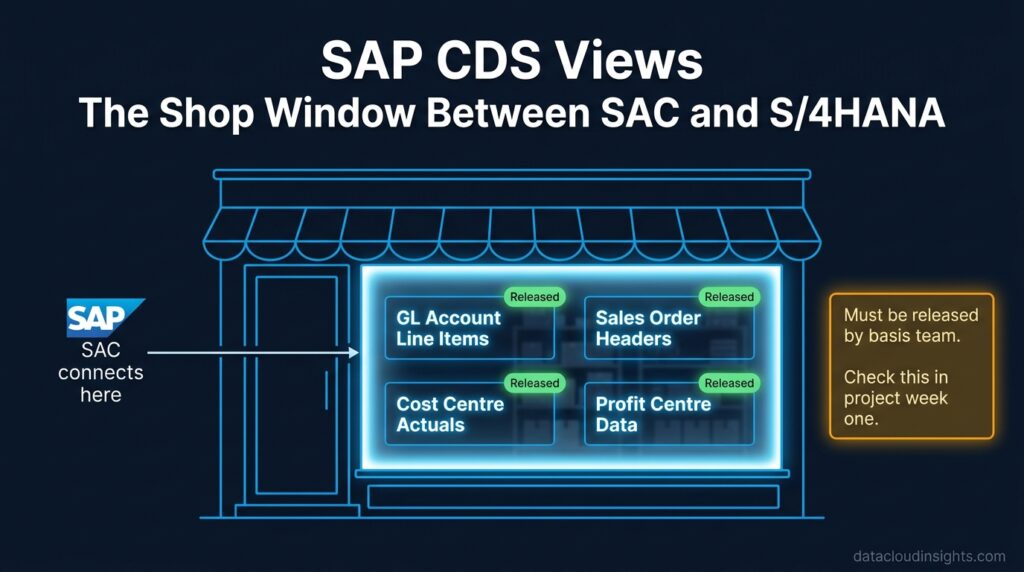
When SAC connects live to SAP S/4HANA, it does not connect to raw database tables. It connects to CDS Views — Core Data Services Views — which are pre-built, analytics-optimised views of S/4HANA data that SAP delivers as part of the product.
Think of a CDS View as the shop window of an S/4HANA system. The shop has a warehouse full of stock behind it — thousands of tables, complex joins, decades of business logic. But the shop window shows you the products that are available, organised clearly, priced correctly. You shop from the window. You do not rummage through the warehouse.
SAC connects to CDS Views the same way. The complexity of S/4HANA stays hidden. The CDS View provides a clean, reliable interface that SAC queries.
CDS Views must be explicitly released for external analytics consumption by the S/4HANA basis team before SAC can see them. This is the most common cause of unexpected delays in SAC S/4HANA connection projects. Identify which CDS Views you need in week one of the project. Confirm they are released before the build starts.
31. SAP Cloud Connector
SAP Cloud Connector is software installed on a server inside your company’s network that creates a secure encrypted tunnel between your on-premise SAP systems and cloud services like SAC.
Your on-premise SAP BW system lives behind your corporate firewall. SAC lives in SAP’s cloud. The firewall prevents SAC from reaching BW directly. The Cloud Connector creates an outbound-only tunnel from inside your network to SAP’s cloud — no inbound firewall ports need to be opened. Your security team will not reject it.
The drawbridge analogy works well here. Your castle is protected by a moat — the firewall. Nobody can get in from outside. But you can lower the drawbridge from the inside to let trusted visitors reach you. Cloud Connector is the drawbridge mechanism — initiated from inside your network, controlled by you, able to be raised or lowered by your team.
32. SAP Datasphere
SAP Datasphere is SAP’s modern data integration and modelling platform — the governed semantic layer designed to sit between source systems and SAC. It connects to multiple data sources, applies transformations and governance, and exposes clean analytical data to SAC.
Think of Datasphere as the data preparation professional between raw source data and the analytics tools that present it. Source systems produce raw data. Datasphere cleans it, models it, governs it, and serves it through well-defined data products. SAC visualises it.
The combination of SAP Datasphere plus SAC is SAP’s strategic architecture for enterprise analytics in 2026. Datasphere handles complexity. SAC handles consumption. Each tool does what it does best.
33. Live Connection vs Import Connection
SAC connects to data sources in two fundamentally different ways — and choosing between them is one of the most consequential technical decisions on any SAC project.
A Live Connection queries your source system directly every time a user opens or refreshes a report. Data is always current. Performance depends on how busy the source system is at that moment.
An Import Connection copies data from your source into SAC on a schedule — daily, hourly, or whatever frequency your business requires. Reports load from SAC’s own copy of the data, which is fast. Data is only as current as the last import run.
The phone call versus voicemail analogy makes the trade-off memorable. A live connection is a phone call — you hear whatever the person says right now, in real time. An import is a voicemail — you hear what they recorded at the time they left it.
For operational dashboards where managers need today’s numbers — live connection. For monthly management reports where yesterday’s data is perfectly adequate — import. Most large implementations use both depending on the use case.
34. OData
OData is a REST-based standard for exposing data as a web service that SAC can connect to. Many SAP systems and non-SAP applications expose OData endpoints that SAC can use as data sources.
For data engineers OData is the universal adapter for systems that lack a native SAC connector. If a source system does not appear on SAC’s native connection list but exposes an OData API — SAC can connect to it. If it does not expose OData natively — a developer can build a thin OData service on top of it.
35. SAP Business Data Cloud (BDC)
SAP Business Data Cloud is SAP’s unified data and analytics platform announced in 2025 and increasingly deployed in 2026. It combines SAP Datasphere, SAP Analytics Cloud, and SAP-delivered Business Content into one integrated platform with a single licence and pre-built connections.
BDC is the direction the entire SAP analytics market is moving. If you are starting an SAC implementation today, understanding where BDC fits in the vendor roadmap is essential architectural context. SAC is the analytics and planning layer within BDC. Datasphere is the data layer. Business Content provides pre-built data models and reports for standard SAP processes.
Our complete BDC for Data Engineers series covers BDC architecture in depth — link at the bottom of this post.
Category 7 — AI and Analytics Terms
These are the terms that appear when SAC’s built-in artificial intelligence capabilities come into discussion.
36. Smart Predict
Smart Predict is SAC’s built-in machine learning forecasting engine. It analyses historical data, identifies patterns including trends and seasonality, and generates forecasts for future periods — without requiring any coding or data science expertise.
You select the measure you want to forecast, the date dimension, and the number of periods to forecast. Smart Predict analyses the history, tests multiple algorithms, selects the best performing one, and generates forecast values with confidence intervals showing the range of likely outcomes.
The weather forecaster analogy makes confidence intervals intuitive. A forecaster does not say it will definitely rain at 2pm. They say there is an 80 percent probability of rain between 1pm and 4pm. Smart Predict works the same way — not a single precise number but a probable range based on historical patterns.
Smart Predict works best with at least 24 historical data points and clean, consistent source data. It struggles with sudden structural breaks — a global event, a major acquisition, a discontinued product line — that break the historical pattern.
37. Search to Insight
Search to Insight lets users type a question in plain English and SAC automatically generates the appropriate chart or answer.
Type “show me revenue by region for this year” and SAC generates a bar chart. Type “which store had the highest margin last quarter” and SAC generates a sorted table. Type “compare actual versus budget for all cost centres in January” and SAC generates a comparison view.
No SQL. No formulas. No configuration. Just a question in the language you think in.
Search to Insight works well for straightforward questions involving one or two measures and dimensions. It struggles with complex multi-step analytical questions and questions using terminology that does not exactly match the field names in your Model. Use it for quick ad-hoc exploration. Build properly designed Stories for complex recurring analysis.
38. Augmented Analytics
Augmented Analytics is SAC’s proactive AI capability — it analyses your data automatically and surfaces insights you did not know to look for.
The main Augmented Analytics feature is Smart Discovery. You point it at a measure — Revenue for example — and it automatically analyses your entire dataset to identify what most influences that measure. Which dimensions explain the most variance. Which dimension members perform significantly above or below expectations. What combinations of factors correlate with the highest and lowest values.
Smart Discovery generates a multi-page analytical report automatically. Key influencers. Unexpected values. Simulation tool for modelling what-if scenarios.
Smart Discovery identifies correlations, not causes. It can tell you that Store 23 significantly outperforms its predicted revenue based on size and location. It cannot tell you why. The machine finds the signal. The human with business knowledge interprets it.
39. Just Ask
Just Ask is SAC’s conversational AI interface — an evolution of Search to Insight that maintains context across multiple questions in a multi-turn conversation.
Where each Search to Insight question is independent, Just Ask remembers what you asked before. You can ask a follow-up question and SAC understands the context from the previous exchange.
Show me revenue by region. Now filter to North and South only. Which sales rep contributed most in the North? How does that compare to last year?
Each follow-up question builds on the previous answer without starting from scratch. Like asking questions of a colleague who was paying attention to the full conversation rather than answering each question in isolation.
40. Analytics Hub
Analytics Hub is a feature in SAC that acts as a central catalogue — letting users discover and access analytics content from multiple sources including SAC Stories, SAP BusinessObjects reports, and third-party tools — all from one entry point.
For organisations that are migrating from BusinessObjects to SAC over a multi-year period, Analytics Hub provides a transition experience where users can access both old and new content from one place without knowing or caring which system the content actually lives in.
The user logs into SAC. Opens Analytics Hub. Sees their BusinessObjects reports and their SAC Stories side by side in one catalogue. Clicks on either type and it opens. The underlying technology is invisible.
Quick Reference — All 40 Terms at a Glance
Save this section. Screenshot it. Come back to it during your project.
Platform terms: SAC, BTP, Tenant, Story, Analytic Application, Analytics Designer
Data and modelling terms: Model, Analytical Model, Planning Model, Dimension, Measure, Hierarchy, Calculated Measure, Restricted Measure, Account Dimension
Reporting terms: Page, Widget, KPI Tile, Input Control, Linked Analysis, Drill Down, Responsive Canvas, Classic Canvas
Planning terms: Version, Data Action, Spreading, Data Locking
Administration terms: Role, Data Access Control, Transport, Content Network
Integration terms: CDS View, Cloud Connector, Datasphere, Live Connection, Import Connection, OData, SAP Business Data Cloud
AI terms: Smart Predict, Search to Insight, Augmented Analytics, Just Ask, Analytics Hub
Key Takeaways
- SAC combines Business Intelligence, Planning, and AI in one browser-based platform — replacing three tools most companies previously needed separately
- Always check which tenant you are in before making any changes — development, QA, and production are completely isolated environments
- The Model is your kitchen — the quality of every Story built on top of it depends entirely on the quality of the Model beneath
- Dimensions are the labels you filter and group by. Measures are the numbers you analyse. Getting this distinction right at model design stage prevents significant rework
- Data Locking and Roles are not afterthoughts — design your security and governance approach in week one of the project, not week ten
- Smart Predict, Search to Insight, and Augmented Analytics are genuinely powerful for organisations with clean, well-governed data — and nearly useless for organisations without it
Related Reading on DataCloudInsights
- SAP Analytics Cloud Complete Beginner’s Guide
- SAP Analytics Cloud for Data Engineers — Part 1
- SAP Business Data Cloud for Data Engineers
- SAP Analytics Cloud vs Power BI — Honest Comparison
- SAP Analytics Cloud Performance Tips
Published by the Data Cloud Insights team — SAP data professionals with hands-on implementation experience across Europe.